Wednesday, 9 February 2011

'Invalid characters' in Analysis Services cube

We ran into the following error whilst trying to query our development cube today;

The server sent an unrecognizable response.
' ', hexadecimal value 0x19, is an invalid character.

Rather peculiar I think you'd agree! Turns out the data in question was a Unicode field with a ASCII control character in it. 0x19 is ASCII character 25 (19 in hexadecimal) - which stands for EM or End of Medium apparently.

Analysis Services quite happily processed and stored the data - however any attempt to query it was defeated despite the fact that the associated dimension attribute was also Unicode (ie a WChar). This, I realised, was due to the fact that clients communicate with Analysis Services using the XML for Analysis (XMLA) protocol. As the name suggests its based on XML which cannot encode some unicode characters - including ASCII 25!

How on earth it got into our source system was a mystery - but we had to do something about it.

Fortunately there's a very useful option in Analysis Services for dealing with this sort of issue; the InvalidXMLCharacters property. You can find it by right-clicking on an attribute and selecting Properties:


Then expand the 'NameColumn' property and under that you'll find the InvalidXMLCharacters property:


Essentially it tells Analysis Services what to do with characters that aren't supported by XML

It has three settings:

PreserveKeep invalid characters. The default
ReplaceReplace with a '?'
RemoveRemove the character from the query results

We opted for 'Remove' which resolved our problem. Its worth considering setting this on all unicode and non-unicode text attributes as potentially any off these could include invalid XML characters. It really depends on how well you know - and trust - your data source...

Tuesday, 18 January 2011

Configure Reporting Services to use proxy for Bing maps

If you work somewhere that uses a proxy server to connect you and your servers to the internet you will need to configure Reporting Services to use said proxy in order to use the Bing maps layer. Otherwise you will see something along the lines of the following message in your report, instead of a map:
The remote name could not be resolved: 'dev.virtualearth.net'
The solution is easy;

Step one
Navigate to the webconfig file for the instance of Reporting Services you want to proxy out to the internet. Typically for 2008 R2 this will be:
<drive name>\Program Files\Microsoft SQL Server\MSRS10_50.<instance name>\Reporting Services\ReportServer\web.config

Step two
Add the following xml fragment to the file - I usually add it in-between the</runtime> tag and the </configuration> tag, at the end of the file:

<system.net>

        <defaultProxy enabled="true" useDefaultCredentials="true">

            <proxy bypassonlocal="True" proxyaddress="http://<proxy server>"  />

        </defaultProxy>
    </system.net>

Save the file.

This of course assumes your server is allowed to proxy out in the first place (which it will need for Bing maps integration). You can test this by logging onto the server and firing up a browser or by asking your friendly local sysadmin...

Sunday, 14 November 2010

SQL Server Denali: SSIS Configuration and Package Execution

One of the first things you note from the release notes are the changes to SSIS configurations in Denali. This is excellent news because the use of configurations in previous versions of SSIS weren't without their problems. The inimitable Jamie Thompson has a series of excellent posts about it which I won't repeat here, plus there is additional information on the MSDN Wiki.

Briefly however, the new deployment model involves deployment to a specially constructed SQL DB otherwise known as 'SSISDB' (at least in this CTP) which appears under its own node in SSMS - with its own GUI options. The SSISDB database is the SSIS 'Catalog' and includes the concepts of environments and parameters to allow run-time configuration of packages. Therefore SSIS is now 'environment aware' and there is no need to have to store configuration locations outside of SSIS in Windows environment variables and so on - which was always a bit awkward. Parameters can now be created on a project level removing the need to create Parent package configurations. All of this can be administered by using views and stored procedures, the API or the aforementioned SSMS.

However the one thing I was left wondering was: 'how do I execute a package under the new configuration model without using the SSMS GUI?'. DTExec still exists but does not appear to have options to use the new environment variables (at least in the current CTP). Happily perusal of the new MSDN documentation reveals the answer.

Firstly create and environment called 'env1', deploy an SSIS project called 'Project' with a package called 'Package1' to a folder called 'Test'. See Jamie's blog to set these up. Then do the following. First of all you need to retrieve the appropriate reference id for the project and environment:

DECLARE @execution_id BIGINT

DECLARE @reference_id BIGINT


SELECT @reference_id = e.reference_id

FROM   catalog.project_environments e

       INNER JOIN catalog.projects p

         ON e.project_id = p.project_id

WHERE  e.environment_name = 'env1'

       AND p.name = 'Project'
Then we need to tell the SSIS Catalog that we want to execute the package with the particular reference:

EXECUTE catalog.create_execution

  @folder_name = 'Test',

  @project_name = 'Project',

  @package_name = 'Package1.dtsx',

  @reference_id = @reference_id,

  @execution_id = @execution_id OUTPUT

Finally tell SSIS to execute using the execution id created above:

EXECUTE catalog.start_execution @execution_id = @execution_id

A couple of notes:

1. The package referenced by 'create_execution' has to have the 'Entry-point package' property set in Visual Studio:


2. There is an unused parameter in the above call to 'create_execution' - '@use32bitruntime' - use this on 64-bit environments if you want to force SSIS to execute in 32-bit mode.

This leaves two overall configuration options as I see it. You could either:

1. Have one SSIS 'environment' for every application you have. This means that the SSIS environment referenced at runtime would be the same across Dev, Test, Live and so on. Obviously the parameters themselves would be different!

2. Have all of your application/network environments (ie Dev, Test, Live) created in every instance of the SSIS Catalog and reference the appropriate one at runtime. This is obviously more flexible but probably carries more risk of running the wrong configuration on the wrong environment - with potentially serious consequences!

SQL Server Denali: First Impressions

So I, along with a great many others, have been playing around with Denali CTP1 over the last few days and reading about the many announcements made at SQL PASS. Its become clear that its probably the biggest release since SQL Server 2005 in terms of new features, with possibly the biggest splash being made by 'Project Crescent' (the reporting tool I mentioned in my previous Denali post) and the Business Intelligence Semantic Model (BISM).

They're both described in quite a bit of detail here, and the introduction of BISM has provoked some misgivings in the developer community. However the introduction of the Powerpivot engine (otherwise known as Vertipaq) to developer tools, has to be a good thing even if they haven't managed to integrate it with Analysis Services. Potentially this could even mean the end of data warehousing and ETL, although this has been tried before...

Project Crescent is Silverlight-based and looks like the sort of end-user BI tool those of us working with MS BI software have been waiting for since Reporting Services came out. There's a very brief demo of it here.

On a more detailed note as I said in my previous post you won't be able to use the new Denali CTP1 projects if you have 2008 or 2008 R2 installed and I found that I had to uninstall the 2008 Team Foundation Client as well. However if you're using Windows 7 PowerShell 2.0 is already installed.

Additionally on starting SQL Server Management Studio (SSMS) I found the Create Catalog on the Integration Services folder (of which more in a later post) greyed out as follows:


When I tried to connect to the (now superceded) Integration Services Server I got the following 'Access denied' error:


On Windows 7 both problems were solved by simply running SSMS in Administrator mode by right-clicking on the SSMS icon and selecting 'Run as Administrator':


More soon...

Thursday, 11 November 2010

Denali available for download

As promised by MS the first CTP of the next version of SQL Server is available for download now. What's new? Check here and here.

One thing that immediately jumps out at me is the following;

Business users will gain greater agility and empowerment with a new highly interactive, web-based data exploration and visualization solution. Introducing new and engaging ways to discover insights through a drag-and-drop interface, smart and powerful data querying and interactive storyboarding to allow users to quickly create and share visual presentations of large datasets.
Sounds intriguing - but I'm not sure its in the CTP. Needless to say I'm downloading now...

Update:

Its worth checking the release notes here. There is a dependency on Powershell 2.0 - and more importantly no support for side-by-side installations with 2008/R2. There is also no support for XP regardless of SP version.

Thursday, 28 October 2010

Integration Services Lookup caching - Part one

Lookup caching in Integration Services is a new feature in 2008 which didn't get a lot of attention at the time of release and even now a search reveals some posts that discuss one aspect or other, but maybe not the whole story. Hopefully I will redress the balance here a little.

First of all then - what is Lookup caching?

Back in Integration Services 2005 there was a transformation task which allowed you to match a record in the dataflow with record or field in a database via an OLE DB connection. In a data warehouse context this was often used to look up surrogate keys when loading fact tables. This was OK but every time a lookup was needed it required a round-trip to the database. If you're loading a data warehouse with role-playing dimensions you might be looking up the same values for the same fact table, in the same dataflow. There were some options for preformance-tuining but essentially you always had to connect to the database in some way every time. Inefficient and in stark contrast to products such as Informatica which allowed you to reuse lookup data cached in memory.

So what changed in 2008?

For 2008 Microsoft substantially improved lookup functionality. You now have two basic caching options for lookups. These boil down to in-memory caching and file caching. Both are potentially faster than lookups using a database.

In this post we'll deal with memory-caching.

As the name suggests this stores the lookup data in-memory (ie RAM). This is pretty well covered by Jamie here . The key point is that the in-memory cache will not extend beyond the scope of the package ie you can't re-use an in-memory cache in one package having created in another. At this point its worth clarifying how this is used in a package.

Step one:

After you've created a connection manager, the first step is to create a data source in a Data Flow Task - in this example it is an OLEDB Source Transformation. Note you can use any source for this - providing another advantage over using the 2005 look-up task on its own. I'm calling this OLEDB_Dim_Time for obvious reasons:

  
As you can see we're going to look up a time surrogate key - and by time I mean time of day not a calendar or date dimension. I'll cover the usefulness of a 'real' time dimension in another post. As is best practice we are selecting only the fields needed for the look-up and the value to be added to the data flow (ie the TimeKey).

Step two:

The next step is to terminate the data flow in the Cache Transform - which caches in memory.

The Cache Transform Editor looks as follows:


Here you need to create a cache connection manager by clicking the New... button. This then displays the Cache Connection Manager Editor, give the Cache Connection Manager a sensible name - in this case 'TimeLKP', and click on the 'Columns' tab: 


Here you need to specify which columns are 'indexed columns'. This isn't 'indexed' in the sense that there's a database index on the columns specified, instead this is the index that the lookup will use (ie the business key(s)). In other words, specify the order in which a lookup transform should use the lookup columns - lowest level (ie most granular) first. Here we have one column to lookup on so we make this position 1. Then if you want, you can alter the column names in the cache as follows:


At the end of this you should have a Data Flow that looks something like this:


If you were creating multiple caches you could put them all within the same Data Flow - or split them up, its up to you. However, you have to ensure that the cache is created before the lookup is used. To this end I put the lookup in a seperate Data Flow.

Step three:

All thats left is to use the Cache Connection Manager in a Lookup Transform.
This is very straightforward. Create another Data Flow and within that, a data source connection in the normal way. Then add a Lookup Transform to the Data Flow and open its Editor. Select the 'Cache connection manager' radio button.


Then choose your Cache connection: 


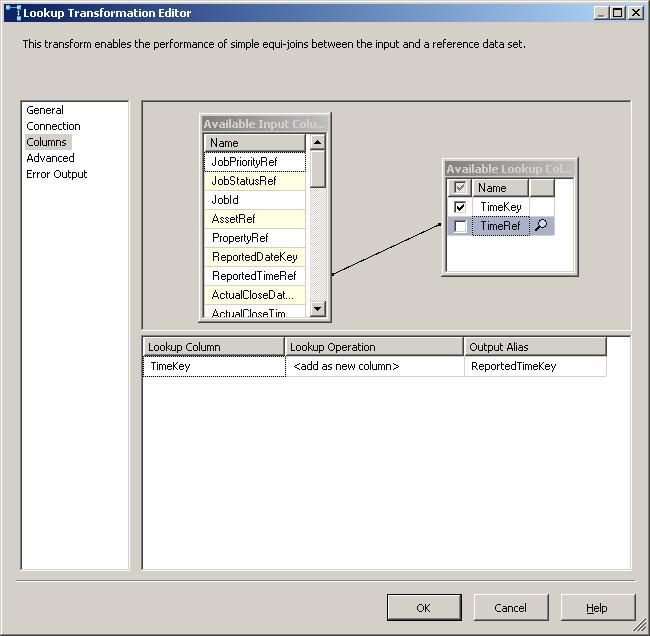
The rest of the process is exactly the same as a normal lookup:


Hopefully thats clarified how to go about creating an in-memory lookup cache. In my next post I'll demonstrate creating a file-cache and share the results of my entirely unscientific performance comparison  of memory-caching vs file-caching vs no caching.

Thursday, 30 September 2010

Next version SSIS

Details of the next version of SSIS have been leaking onto the internets. Some highlights; undo in the designer - which will be a big time-saver, data-flow sequence containers - allowing developers to group and hide transformations, and last but not least - rounded corners!

This is great, and no doubt other improvements will be announced over the next few weeks (presumably Visual Studio 2010 integration is a cast-iron certainty). However other gripes on connect remain open, or have already been closed as 'won't fix', such as case sensitivity on the Lookup transform (forcing additional 'uppercase' columns, or passing the whole lookup to the SQL database), and some of Jamie Thomsons debugging suggestions.

Nit-picking aside its interesting to note that less than 6 months after the release of R2 MS is starting to talk about CTP's of the next version.